 Saifullah Ahad
How I built it
 GlyphFlow: Accessible ReaderLive on Google Play
GlyphFlow: reading apps for dyslexia adults
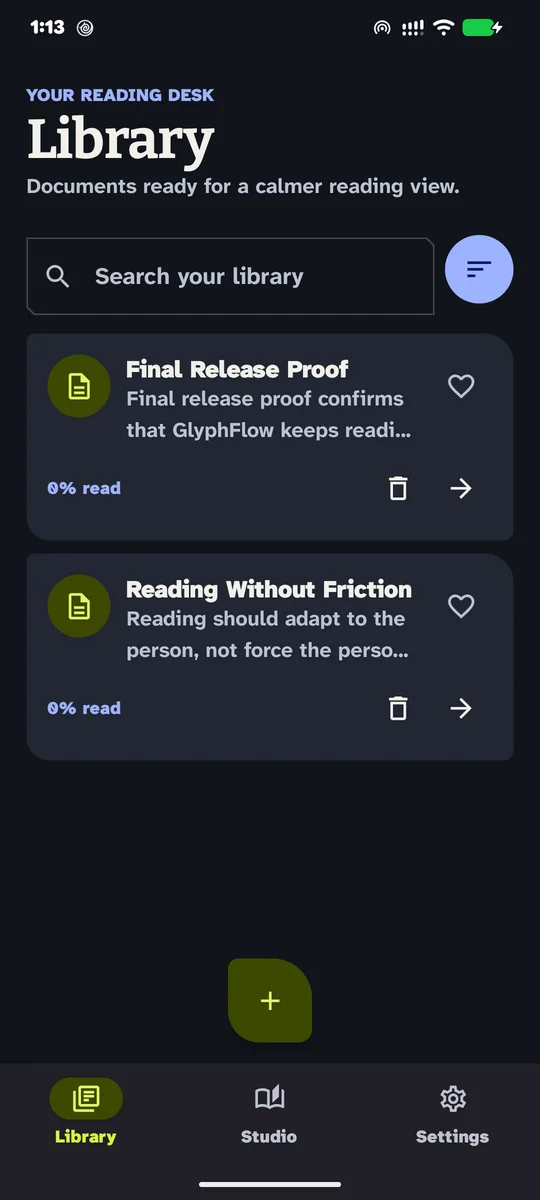
Reading apps for dyslexia adults help reduce visual crowding, track lines without slipping, and pair spoken audio with printed text. GlyphFlow turns camera captures, images, PDFs, and pasted text into a customizable reading canvas with tailored typography, an anchoring focus ribbon, and synchronized speech. Here is how the reader works, with its limits made clear.
01
The barrier of the static printed page
Dense paperback text, low-contrast office handouts, and rigid multi-column PDFs create significant friction for adults who experience visual crowding, line tracking difficulty, or reading fatigue. Words crowd together, and the eye frequently slips between adjacent lines.
Optical magnifiers enlarge pixels but keep the original rigid layout, forcing constant horizontal panning. GlyphFlow approaches the problem by separating the text from its original physical container: it recognizes the words on the page and reflows them onto a flexible, customizable reading surface.
02
Review before saving: catching OCR mistakes
On-device optical character recognition can misread curved book spines, faint ink, uneven lighting, or complex formatting. Blindly converting a page directly into a document risks carrying quiet errors that disrupt comprehension later.
GlyphFlow routes all extracted text through an editable review screen before anything enters the library. You can correct misrecognized words, edit the document title, strip out extraneous headers or page numbers, and ensure the text is accurate before saving it in the app on your phone.
03
Tailoring the canvas: typography and the focus ribbon
Visual comfort is highly individual; no single font size, color theme, or spacing ratio works for every reader. GlyphFlow gives the reader direct control over the reading canvas in real time.
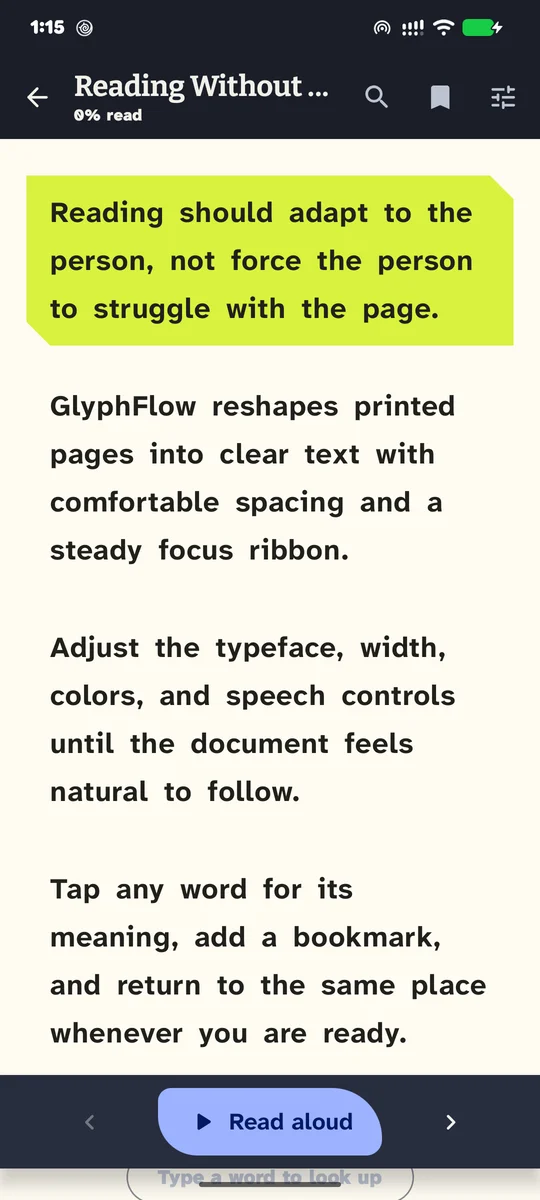
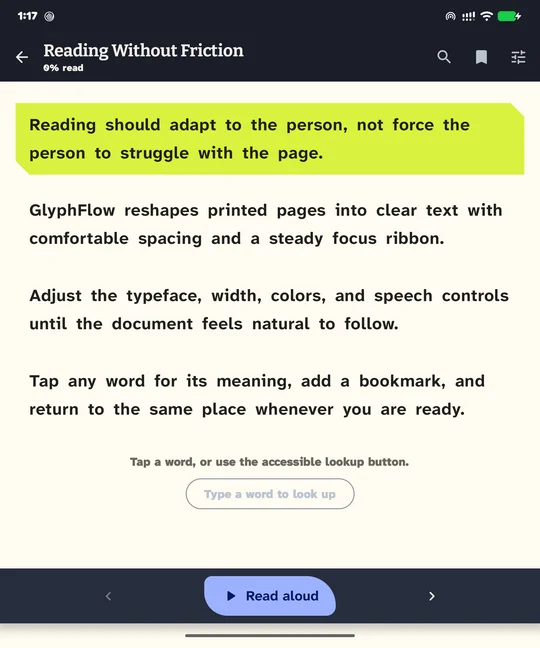
You can adjust text size, expand line spacing, widen letter and word tracking, and choose a page color: Paper, Soft sky, Dark or High contrast. To combat line-skipping, the citron focus ribbon provides a steady horizontal visual anchor across the active reading paragraph.
04
Dual-modality reading with Android text-to-speech
Many readers find a page easier to follow when they hear it at the same time. GlyphFlow integrates with the text-to-speech engine already installed on your Android device.
The reading bar includes play, pause, resume, passage navigation, and rate and pitch sliders. When the selected engine provides range timing callbacks, GlyphFlow synchronizes the audio with real-time text highlighting, keeping the active passage visible on screen.
05
In-context word lookup and local storage
Stumbling over an unfamiliar word can interrupt reading comprehension. Tapping any English word in the reading studio requests a dictionary definition without leaving the document.
The lookup sends only the tapped word to dictionaryapi.dev, never the surrounding sentence or document content. Each definition it fetches is saved on the phone, so it opens again later without a connection.
06
Release verification and clear boundaries
Before release, the signed build was installed and checked screen by screen: camera intake, the editable review step, text-to-speech pause and resume, word lookup with and without a saved definition, extra-large system text, and layouts at phone, foldable and tablet sizes.
What remains unproven is equally important to state. GlyphFlow has not been evaluated in clinical trials or formal reading studies with diagnosed dyslexia cohorts, and it has no measured comprehension statistics. Optical character recognition depends on photograph clarity and cannot reliably parse handwriting or distorted multi-column tables. Text-to-speech pronunciation and highlighting depend on the engine installed on your device.
GlyphFlow is an accessibility reading aid that changes how text looks and sounds on screen. It is not a diagnostic test, medical therapy, or educational-assessment service, and does not treat or cure any condition.
The design choice
Turn rigid print into reflowable text with an editable review step, personal typography controls, an anchoring focus ribbon, and synchronized speech.
What makes reading easier for adults with dyslexia
When choosing dyslexia friendly reading apps or adjusting physical documents, altering the visual presentation and adding sound can make long reading less tiring. This guidance draws on recommendations from the Job Accommodation Network (JAN) (a service of the U.S. Department of Labor’s Office of Disability Employment Policy) and the British Dyslexia Association.
- Convert print text to audio (Text-to-Speech). Both JAN and the British Dyslexia Association recommend converting written materials into audio and utilizing text-to-speech software. Listening while you read lets your ears share the work.
- Scan paper materials with OCR. JAN highlights scanning paper documents into digital format with Optical Character Recognition (OCR), which allows the text to be read aloud, enlarged, or reflowed into an accessible reading view.
- Adjust screen background colors to reduce glare. The British Dyslexia Association recommends changing the background color of the screen to suit individual preference, and anti-glare screen filters. JAN similarly recommends color contrast overlays and altering the on-screen color scheme to visual preferences.
- Increase spacing between lines and words. JAN recommends double-spacing print material and choosing type-written text in fonts that are not italicized. More space between lines and words can stop the lines running together.
- Use an on-screen reading ruler or line strip. JAN advises using an on-screen ruler, strip, or screen-highlighting software to help focus and keep track of one’s place while reading from a computer screen.
- Break text into manageable sections and allow time. The British Dyslexia Association recommends highlighting key points in documents, using different formats (such as audio or diagrams), and allowing plenty of time to read and complete tasks.
How GlyphFlow fits in: GlyphFlow brings these practical reading accommodations together on Android. It turns camera photos, image files, PDFs, and pasted text into reflowable digital text, lets you adjust font size, line spacing, and color palettes, anchors the eye with a citron focus ribbon, and provides synchronized text-to-speech playback.
Limits and unverified aspects: GlyphFlow has not undergone clinical trials or formal reading-comprehension studies with dyslexic adult cohorts, and has no measured reading-speed or comprehension statistics. On-device OCR is sensitive to lighting, skewed angles, and handwriting. Text-to-speech voice quality and highlighting precision depend on the engine installed on the user’s device.
Medical notice: GlyphFlow is an accessibility reading aid that changes how text looks and sounds on screen. It is not a medical device, diagnostic test, or clinical treatment, and makes no claim to treat or cure any medical condition.
More build stories: How to check a used phone before buying · How to check if your electricity meter is running fast · Eelj: a fair turn for a village’s one harvester · Practicing stuttering techniques at home · Where and when to look for the new crescent moon · How to split electricity bill with roommates · Milk fat SNF rate calculator, step by step · How to check a link before you click it · How to calculate cattle weight without a scale · How to settle who owes who in a group · Braille translator that explains every cell · Math learning gaps: where to start when a child is stuck · How to describe a car noise so a mechanic can find it · Convert Rumi to Jawi, then check the spelling · How to sync SRT subtitles with video · How to measure land area with phone GPS · Quran pronunciation app, tap any word to hear it · Lipi: Bangla keyboard, side by side with Ridmik · How to check an overseas employment contract · Extract data from graph image on Android · VaporSill: how to tell if damp or condensation · Dinig: doorbell alert for deaf
Work with me
Have a problem an app could solve?
Tell me what people need to do, and where the current process fails. You can read more of my work or contact me directly.