 Saifullah Ahad
 Sentry: LAN ScannerLive on Google Play
See who is connected to my wifi: start at the router
To see who is connected to my wifi, the US Federal Trade Commission says to go to the router’s web interface and look for connected devices, wireless clients, or DHCP clients. A list is only the start, because a name on it still has to be matched to something in your home. Sentry, an Android app that scans from your phone, comes after the guide, along with what it cannot show.
“To make sure you know which devices are connected, go to your router’s web interface and look for connected devices, wireless clients, or DHCP clients.”
From “Securing Your Internet-Connected Devices at Home”, Federal Trade Commission, August 2022.
How to see who is connected to my wifi router
Two US government pages cover it. Neither names an app. In their words, the steps are these.
-
Open the router’s web interface
The FTC puts this after securing the router itself: “Once your router is secure, search for each device connected to your router.” Its next sentence is the one quoted at the top: go to the router’s web interface and look for connected devices, wireless clients, or DHCP clients. Neither page gives the address or the login, which differ by router. CISA says to “consult your router’s instruction manual or contact your ISP for specific instructions” when you need to change a setting.
-
Read every entry, then match it to something you own
The FTC’s purpose is “To make sure you know which devices are connected.” Counting what you own first makes the list easier to read: phones, laptops, TVs, speakers, cameras, printers. The pages do not say how to recognize an entry, and I do not add a method here.
-
Use the router maker’s site to watch for strangers
CISA’s heading is “Monitor for unknown device connections.” Under it: “Use your router manufacturer’s website to monitor for unauthorized devices joining or attempting to join your network. Also see the manufacturer’s website for tips on how to prevent unauthorized devices from connecting to your network.”
CISA’s page, “Home Network Security”, was released February 01, 2021, and cisa.gov marks it as archived content that “may not reflect current policy or programs.” I read its router sections. The FTC article is dated August 2022. I read it in full from an Internet Archive copy, because the FTC address refuses scripts.
An example I made up, not from a source and not from Sentry
A home has two phones, a laptop and a TV: four things you own. The router’s list shows five entries. Four match. One is a short string of letters and numbers you have never seen. That is one entry to look into, not proof of anything. Does an old tablet, a game console or a smart plug explain it?
That is the same idea as the FTC’s line to “disconnect older devices you no longer use from the network”: first you have to know what is there.
What to do after the list
These are the sentences in the two pages that touch it. They are about securing the router and the devices, not about identifying one stranger.
From the FTC
- “Start by changing the default administrative username, password, and network name to something unique.”
- “Disable features you won’t use. If you won’t use remote management, it’s best to disable it. Also, disconnect older devices you no longer use from the network.”
- “Remember to keep checking for hardware and software updates.”
From CISA
- “Change your router’s administrator password to help protect it from an attack using default credentials.”
- The router maker’s website is where it points for tips on preventing unauthorized devices from connecting.
If the trouble is a weak signal rather than strangers, a different page covers it: how to find dead spots in wifi.
How to see who is connected to my wifi on mobile: what Sentry does
The two pages above do not mention a phone scan. Sentry: LAN Scanner is an Android app that scans the network your phone is on and lists the addresses that answer. It does not log in to your router, so it can show something different from the router’s own list. It does not block, remove or protect anything.
The scan
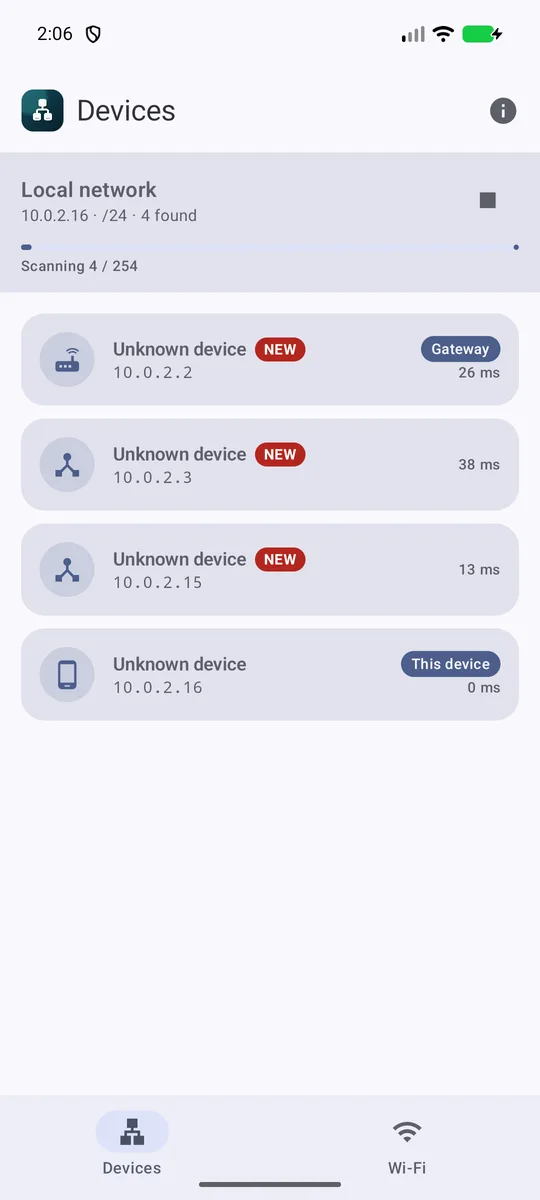
The Devices screen starts a scan when you open it. The header shows the network name when Android allows it, otherwise Local network, then the phone’s address, the network size and how many were found, with Scanning and a count while it runs. A stop button ends it and a refresh button runs it again.
For each address on the phone’s own network, the app makes one ping-style check, and if there is no answer it tries a connection on eight common ports. A refused connection counts as an answer. An address that gives none of these within a short wait is not listed, so a device that is asleep or does not answer may be missing. On a very large network the app only tries the phone’s own block of 254 addresses.
The store picture of the Devices screen, taken on an emulator: four rows with addresses 10.0.2.2, 10.0.2.3, 10.0.2.15 and 10.0.2.16, and the scan at 4 of 254.
What each row says
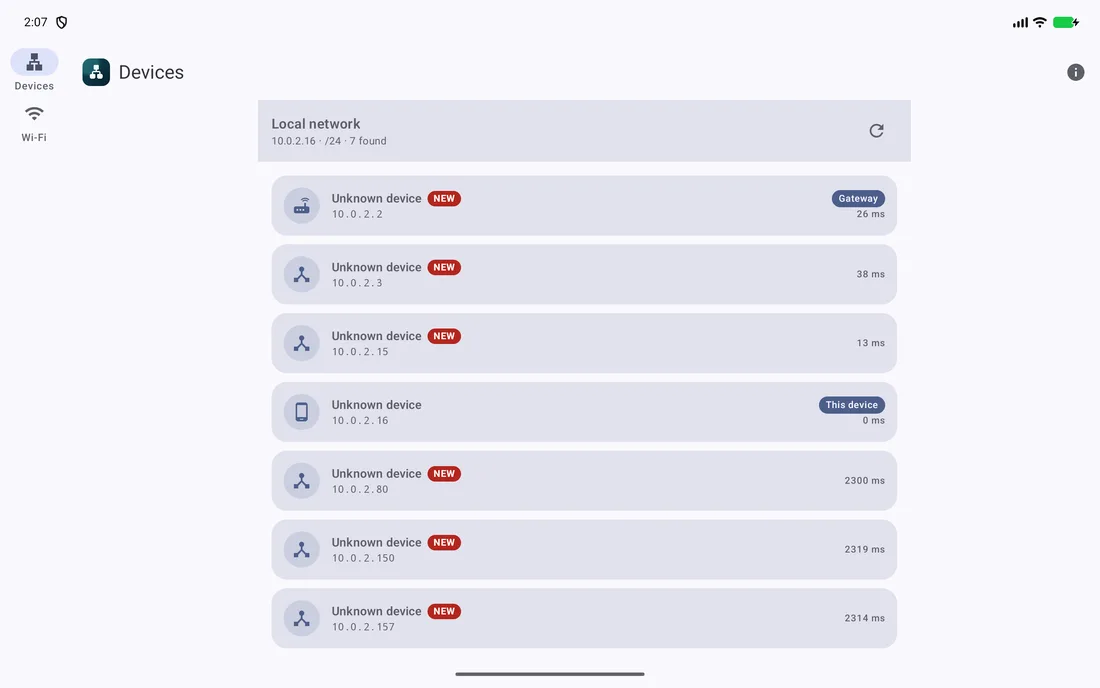
The same screen on a tablet, seven devices found, from the store pictures (an emulator).
One device, and the Wi-Fi screen
Tapping a row opens the device: IP address, MAC, Vendor, Hostname and Latency. The MAC is read from the phone’s own record of nearby addresses. The app’s code notes that some Android 10 and newer builds restrict it, and the app then shows Hidden / unavailable. For other devices there is a Custom name box and a Trusted device switch, and the names are kept on the phone for the next scan. A Scan ports button tries 28 common ports on that one device and lists the ones that connect under Open ports, or says No common ports are open. It reports what connected, not whether that is safe.
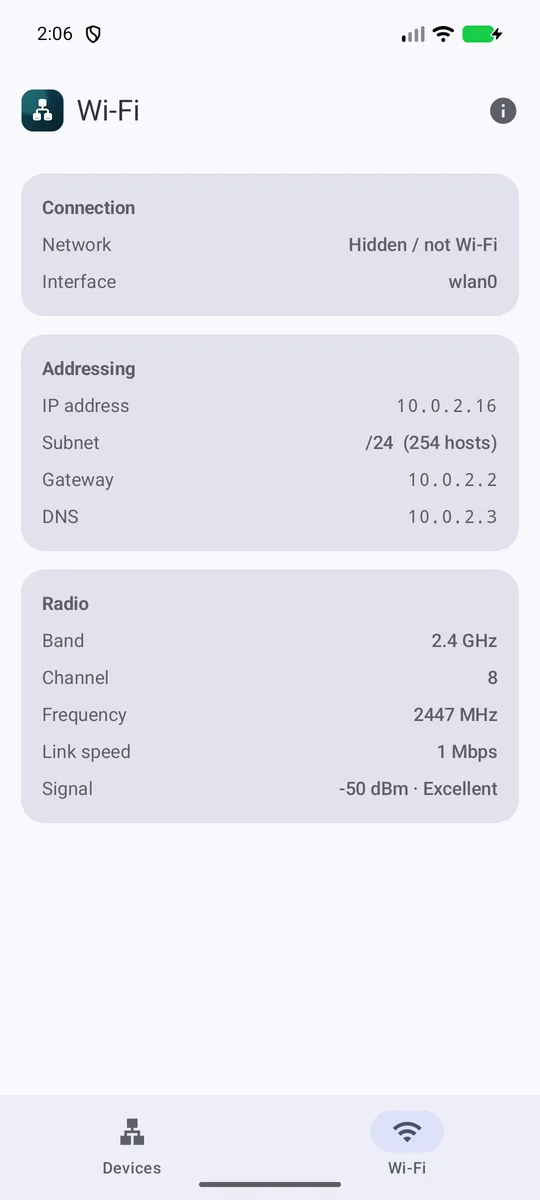
The Wi-Fi screen shows Connection, Addressing (IP address, Subnet, Gateway, DNS) and Radio (Band, Channel, Frequency, Link speed, Signal). The network name needs permission: the app says “Android only reveals the connected network name and access-point details after you allow Wi-Fi details access. Device scanning works without it.” Without it the Network row says Permission needed.
The Wi-Fi screen from the store pictures. Network reads Hidden / not Wi-Fi because it was taken on an emulator.
Where it stops
- It lists what answered a scan from the phone. It does not read the router’s own list of connected devices, so the two lists can differ.
- A device that is off, asleep or does not answer may not appear. A device that is listed is not shown to be doing anything.
- An Unknown device or a missing MAC is not a finding. The app does not say who or what a device is.
- It does not block, remove or lock out any device, and it does not change the router. It makes no security promise.
- The app’s own line on the detail screen says trusted devices will not be flagged as new. In its code the NEW badge follows the saved list, and Trusted adds a tag. I rely on what the code does.
What it keeps, and where
Custom names, trusted choices, first-seen and last-seen times, the last address, MAC and vendor are kept on the phone until you clear the app’s data or uninstall it, as the privacy policy says. The app’s backup is switched off in its manifest. The policy says the app has no advertising, analytics, account, payment or push-notification SDKs.
The app asks for the permission that lets Android show the network name: location on Android 12 and older, Nearby devices on 13 and newer. It also declares internet access, which the scans use. The only message it sends out is the optional Send feedback form in About, which sends your message, an optional email, the app and Android version and the phone make and model to the developer, if you press Send.
What I did not check
I read the store listing, the project notes, the code and its tests by name, the privacy policy, and I opened the store pictures. I did not run the app on a home network and I did not run its tests, and I found no test result. I do not know how many of a real home’s devices it would find, how many would show a vendor name, or how it behaves on any particular phone or router. The store pictures were taken on an emulator, not on a real home network.
Get it
An Android app on Google Play. It lists the devices that answer on the network your phone is on.
View Sentry on Google PlayFederal Trade Commission
“Securing Your Internet-Connected Devices at Home”, consumer.ftc.gov, August 2022. Read in full from an Internet Archive copy. A US government agency.
consumer.ftc.gov: Securing Your Internet-Connected Devices at Home
CISA
“Home Network Security”, released February 01, 2021, marked archived on cisa.gov. The US Cybersecurity and Infrastructure Security Agency. The router sections were read.
Seen a name you do not know?
Start with the router’s own list and the maker’s website, as the sources above say.