 Saifullah Ahad
 LumaClueLive on Google Play
LumaClue: check if a photo is photoshopped
No single look settles it. Two named sources list what to look at in the picture and what to ask outside it, and you can do all of it without an app. LumaClue, an Android app that shows file details and five readings of a photo you pick, comes after.
Full Fact on a suspicious photo
“If you are suspicious of an image online, but still not certain that the image is misleading, one of the best options is to do a reverse image search.”
From “How to spot misleading images online”, Full Fact, updated 6 April 2023.
How to tell if a photo is fake or real: look at the picture itself
The University of Wisconsin-Madison Law Library blog passes on tips from three other sites. It lists these things to look for, in its words.
Too perfect
“Images that look a little too perfect may reveal use of airbrushing”
Warping
“Look beyond the subject of a photo for signs of warping, which is when someone uses a tool to grab an area of an image and move, shrink, or enlarge it”
Repeated objects
“Scan the image for patterns and repeated objects which may indicate cloning, or duplicating part of an image and pasting it over another part”
Shadows
“Missing or mismatched shadows can indicate that part of an image has been replaced”
Blurry areas
“Look for blurry areas. If a single image is saved and re-saved, the entire image will have the same level of quality; however, if part of an image comes from somewhere else, and it was saved at a different compression level, it will be lower in quality”
File details
“Check the EXIF metadata which is stored along with a photo when it’s taken. This includes information like which camera was used, the focal length, aperture, shutter speed, ISO, and so on. Location data in the form of real-world coordinates are also often stored in a photo.”
Source: “Telltale Tips to Spot Altered Images”, University of Wisconsin-Madison Law Library blog, January 15, 2021. It is a short post. I did not read the three sites it draws on, and it names tools that I do not repeat or recommend here.
Then look outside the picture
Full Fact is a UK fact-checking organization. Its toolkit page opens: “Edited or misleading images are some of the most common kinds of misinformation found online, but they can sometimes be hard to spot.” Its points, as it says them:
- Search for the picture
- Wisconsin: “Do reverse image search to find other instances of the same image online, as well as images that look similar using Google Image Search”. Full Fact: “one of the best options is to do a reverse image search.”
- Search what it shows
- “Sometimes, finding the context for these images can also be as simple as searching a description of what’s in the picture.”
- Does it make sense?
- “If you see an image online, especially one going viral, ask yourself if it makes sense.” “Firstly, does the context make sense, and does it fit with what you already know to be correct?”
- Details against the story
- “Do the details in the picture fit with the description? For example, are there any landmarks you could identify or recognise?” “You could also check if the weather in the picture matches up with other pictures or the forecast for that day.”
- The comments
- “If the image has been shared on social media, it’s also worth looking at the comments under a post.”
- The people involved
- “So at times, image verification is as much about asking the people involved as it is using fancy search tools.”
Source: Full Fact, “How to spot misleading images online” by Rachael Krishna, published 9 October 2020, updated 6 April 2023. Read in full.
An example from Full Fact, not from LumaClue
Full Fact wrote about a photo shared thousands of times that claimed to show a rally in London. It says the photo was “actually an image of people praying in Tahrir Square in Cairo, Egypt. It was taken in November 2011.” Its answer to “How did we find the correct image?” was a reverse image search.
Full Fact files this under images taken out of context: a photo with the wrong story attached. That is why the sources above ask about the story as well as the pixels.
What LumaClue shows about a photo
LumaClue: Photo Forensics is an Android app for examining one photo at a time. It does not tell you whether the photo is real or fake. Its start screen says: “it never declares an image real or fake.” It gives you the file details and five readings to look at, and a person has to judge.
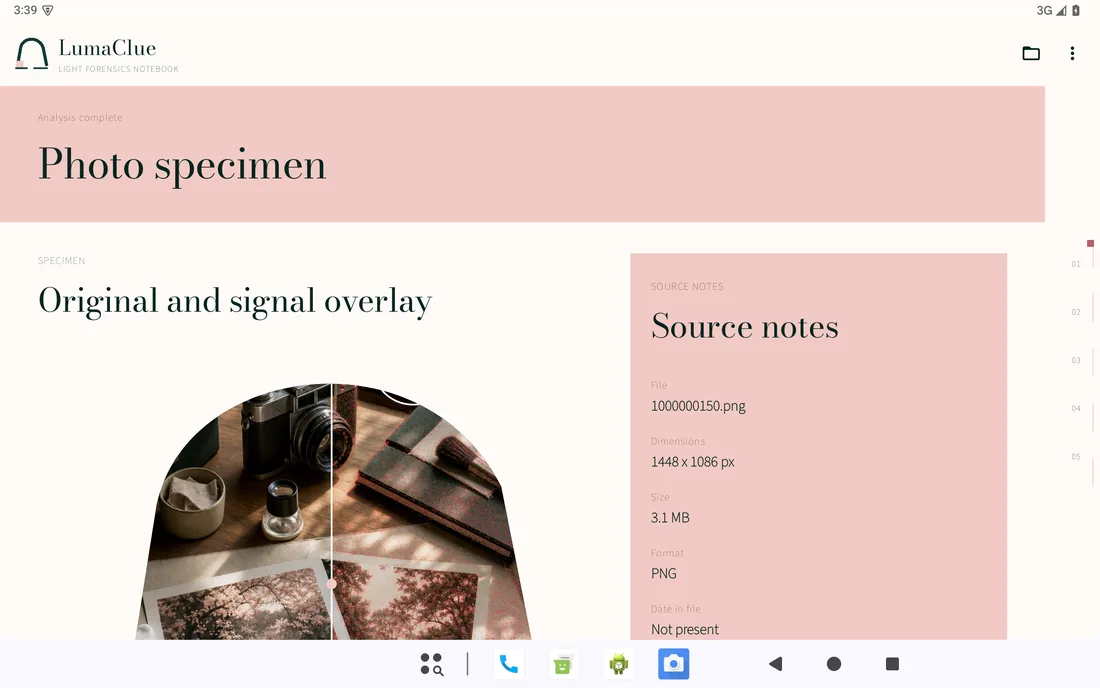
Source notes: the file details
After you pick a photo, Source notes lists File, Dimensions, Size, Format, Date in file and Color space. A Full metadata dossier goes further: Capture and device, Exposure, Location tags, and Authorship and embedded data. Fields the file does not have are shown as missing, and the app says: “absence is not evidence that metadata was removed.” This is the same kind of detail as the EXIF tip above.
The result screen on a tablet: Analysis complete, the example photo split between the original and a signal overlay, and Source notes with File, Dimensions, Size, Format and Date in file (Not present). The photo is an example image used in the store picture.
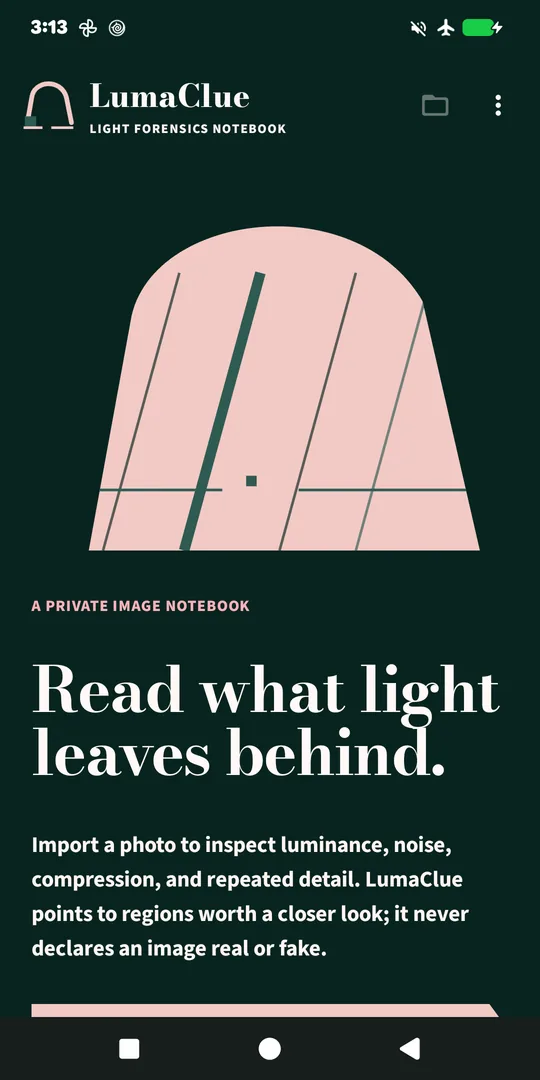
Getting a photo in
The Examine a photo button opens Android’s photo picker, images only. The app copies the exact file into its own storage, works out its SHA-256 fingerprint while copying, and leaves the original unchanged. It says to choose a JPEG, PNG, or WebP photo, and it refuses a file over 128 MB. The readings run on a smaller working copy, at most 1600 pixels on the long edge.
The start screen: the heading “Read what light leaves behind.” and the line saying the app never declares an image real or fake.
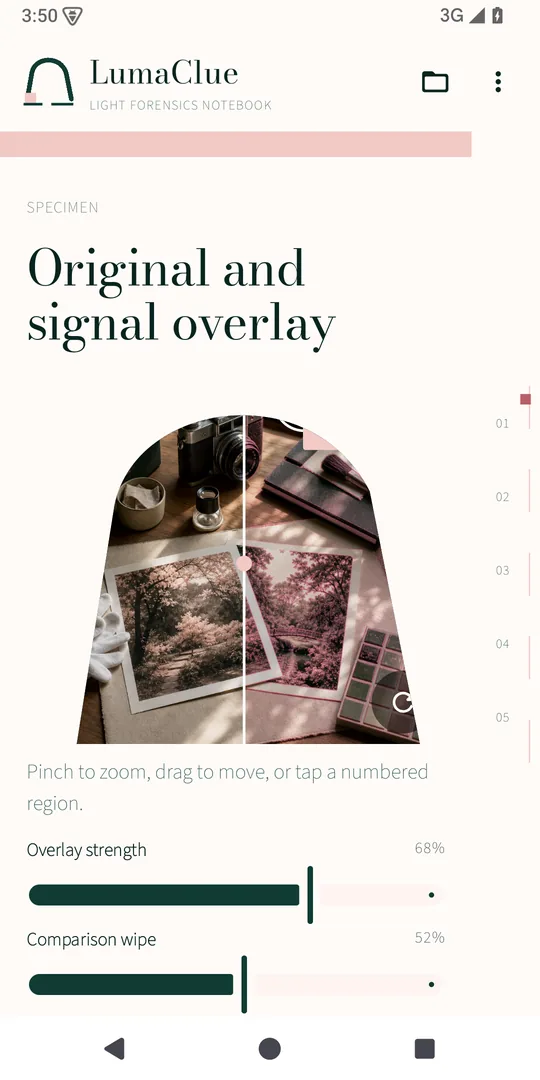
Comparing the original with a reading
In Original and signal overlay you set an Overlay strength and a Comparison wipe to slide between the photo and one reading. The app’s hint: “Pinch to zoom, drag to move, or tap a numbered region.” Numbered regions are places the app marks for a closer look under Screening observations, with names such as Edge halo and Texture shift and a level: Subtle signal, Moderate signal or Strong signal.
The workbench screen: an example photo split between the original on the left and a signal overlay on the right, with the two sliders under it.
The five readings
Under Five independent readings the app says: “Each band measures a different image property. Read them together and inspect the marked regions.” Each reading gets a state: Within this image’s range, Review or Notable. Its description of each:
- Recompression difference “Compares how local areas respond to a controlled JPEG re-encode.”
- Block boundaries “Looks for abrupt changes along the regular grid used by JPEG compression.”
- Local noise residual “Compares fine-grain noise between neighboring areas of the photo.”
- Luminance gradient “Traces changes in brightness direction and strength across the scene.”
- Repeated patches “Finds unusually similar detail repeated in separate parts of the image.”
The app’s own note: “Signal scores are investigative clues, not proof of editing or authenticity.” A second optional photo can be added for comparison; the app then shows whether the two files have an exact SHA-256 match and a perceptual-hash distance, and says it “does not establish where either image came from, who created it, or whether it was edited.” You can also write Analyst notes, keep cases in a library, and save an annotated image or a report to a place you choose.
Where it stops
- It does not say a photo is real, fake, edited or made by a program. The app says it does not identify an editor, recover image history, or prove that a photo is authentic or manipulated.
- The app says: “Camera processing, resizing, screenshots, and social platforms can all change the same signals.”
- A reading marked Notable is something to look at, not a finding. I do not know how often any reading points at a real edit, and this page gives no such number.
- The store text says it does not replace reverse-image search. The questions under “Then look outside the picture” are still yours to ask.
- No account, camera capture, cloud sync, or scanning of your photo library.
What it keeps, and where
The photo copy, the file details, the readings, your notes and the case dates are kept in the app’s own storage on the phone. The privacy policy says the app does not “collect, upload, sell, rent, or transmit photos, metadata, notes, analysis results, identifiers, or usage data,” and that information leaves the app only when you export or share it. Saved cases stay until you delete a case, clear the app’s data or uninstall.
The three ways out are Export annotated image (a PNG), Export text report (a PDF), both saved where you choose, and Share summary, a JSON file and a text note through Android’s share sheet, which the app removes after about ten minutes. The privacy policy says the app requests no runtime permissions and does not declare internet access; the app’s own manifest lists no permissions.
What I did not check
For this page I read the store listing, the project records, the code and the text in it, the privacy policy, and I opened the store pictures. I did not run the app myself. I ran none of the project’s tests and I found no test result in its records, so I cannot say how any reading behaves on a real edited photo. I did not inspect the signed release’s merged manifest. Whether the app is fast or steady on a particular phone is also unchecked.
Get it
An Android app on Google Play. It shows you clues about one photo at a time.
View LumaClue on Google PlayUniversity of Wisconsin-Madison Law Library
“Telltale Tips to Spot Altered Images”, a blog post dated January 15, 2021. Read in full. It is short and passes on tips from How to Geek, Electrons and FindLaw. Its list of tools is not used here.
Full Fact
“How to spot misleading images online”, Misinformation Toolkit, published 9 October 2020 and updated 6 April 2023. Read in full. Full Fact’s own page says it is a registered charity. Its other examples, which name real people, are not used here.
Got a photo someone sent you?
Start with the questions above. Checking a link works the same way: how to check a link before you click it.