 Saifullah Ahad
 WaasitLive on Google Play
SAIFULLAH AHAD / BUILD STORY
Clipboard history Android: where it lives, and how Waasit keeps a list
Clipboard history Android questions usually start the same way: you copied something a minute ago, copied again, and the first text is gone. This page shows where to look first, then how one small app handles it. If you are wondering how to view clipboard history on Android, start with the keyboard.
Step one: look in your keyboard
Many phones keep a copy list inside the keyboard. For Google's Gboard keyboard, the Gboard Help page Copy & paste sections of text with Gboard says: "At the top of the keyboard, tap Clipboard." Tap the item you want to paste, and it goes into the text box.
The same page explains how long things stay: "The clipboard clears your history shortly after you last use it." It adds that this "doesn't apply to pinned text", and that you can touch and hold an item to pin it. If you use a different keyboard, the clipboard button and its rules may differ, so check that keyboard's own settings.
So a keyboard list is a short-term helper. If you want copied text to still be there tomorrow, you need to pin it or keep it somewhere else.
Why apps cannot quietly watch the clipboard
If you try a clipboard manager Android app, one thing is worth knowing. Google's developer page Privacy changes in Android 10 states: "Unless your app is the default input method editor (IME) or is the app that currently has focus, your app cannot access clipboard data on Android 10 or higher."
In plain words, on Android 10 and later an app that is closed or in the background cannot read what you copy. Any manager app works within that rule.
What Waasit does with copied text
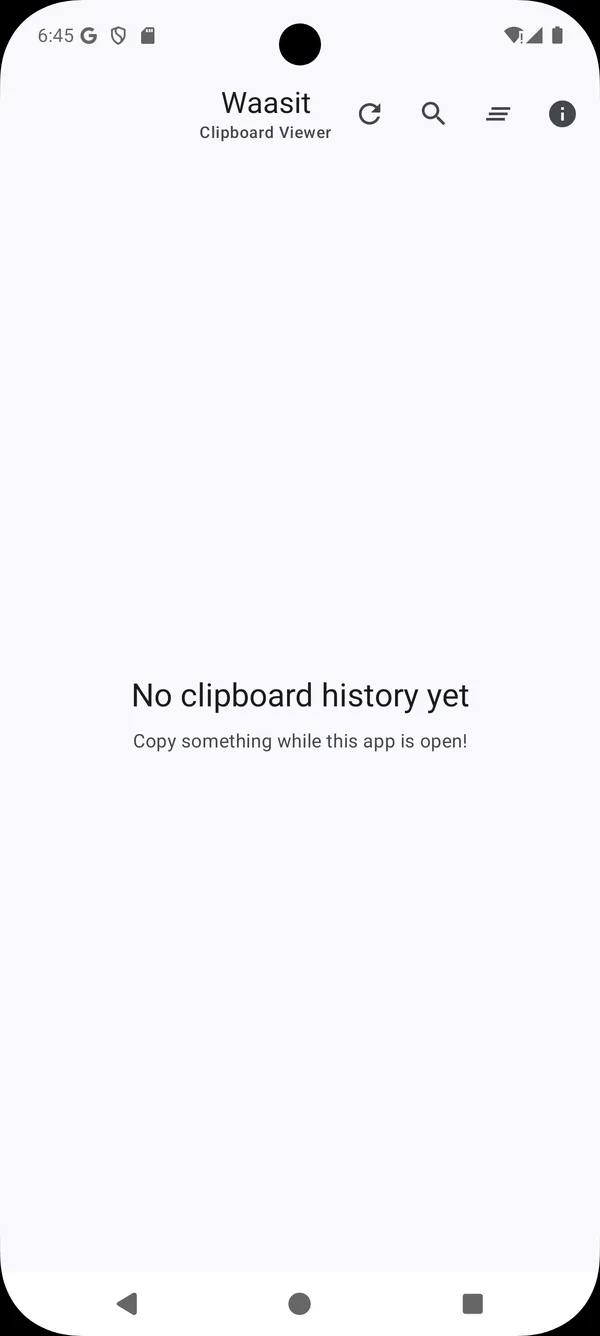
I built Waasit - Clipboard Viewer as a plain list of text you copied. This part comes from reading its code, because the app has only a store listing and no test records. It works like this:
- When it saves. While Waasit is open on the screen, it listens for a change to the clipboard and adds the new text to its list. When you leave the app, it stops listening. It has no background service. This fits the Android 10 rule above, and it also means copies made while it is closed are not caught.
- The Refresh button. It reads the text that is on the clipboard right now and adds it. It reads only the latest copy, never older ones.
- What is kept. Text only, newest first, each with a time such as "Just now" or a count of minutes, hours or days. Exactly the same text is not saved twice.
- Where it is stored. On your phone, in the app's own storage, as one saved list. The app's manifest declares no permissions.
- How long. I found no code that removes old items or limits how many are kept. The list stays until you delete things.
- Using an item. Tap a card, or its copy button, and the text goes back on the clipboard with the message "Copied to clipboard". Each card shows up to three lines, but the whole text is copied.
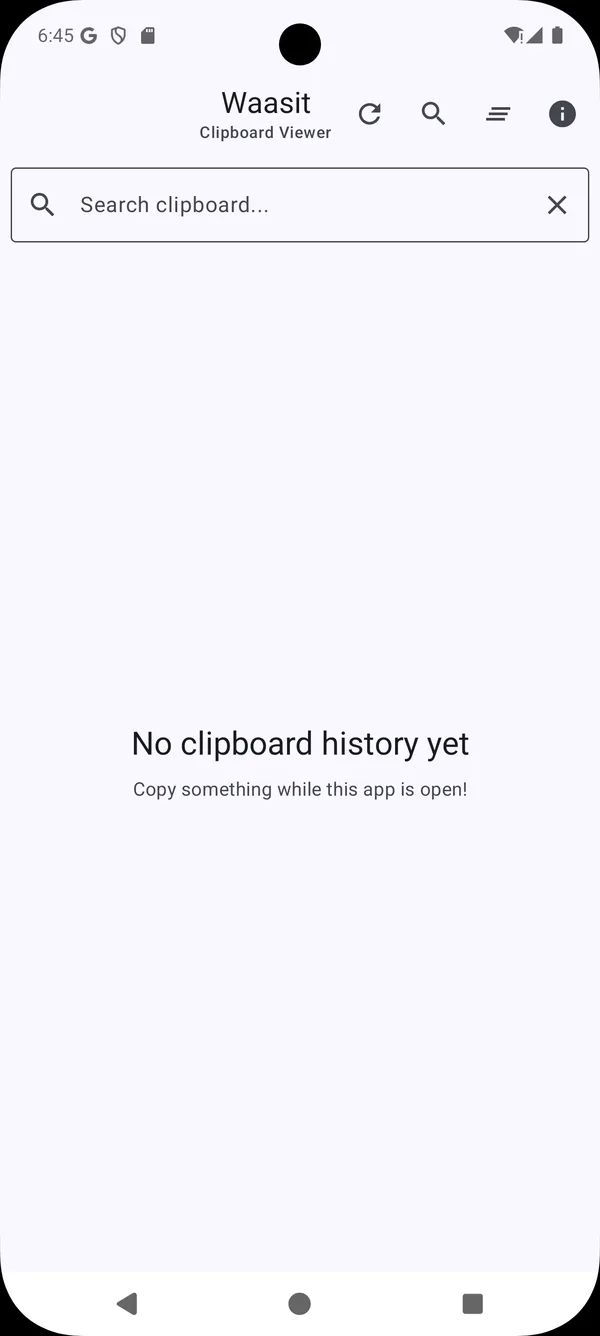
- Search. The magnifier opens a box labeled "Search clipboard..." and the list narrows to items containing what you type.
- Pin. The pin button marks an item and colors the icon. In the code, pinning does not move the item up or protect it from deletion.
How to delete what Waasit saved
- One item: swipe its card from right to left.
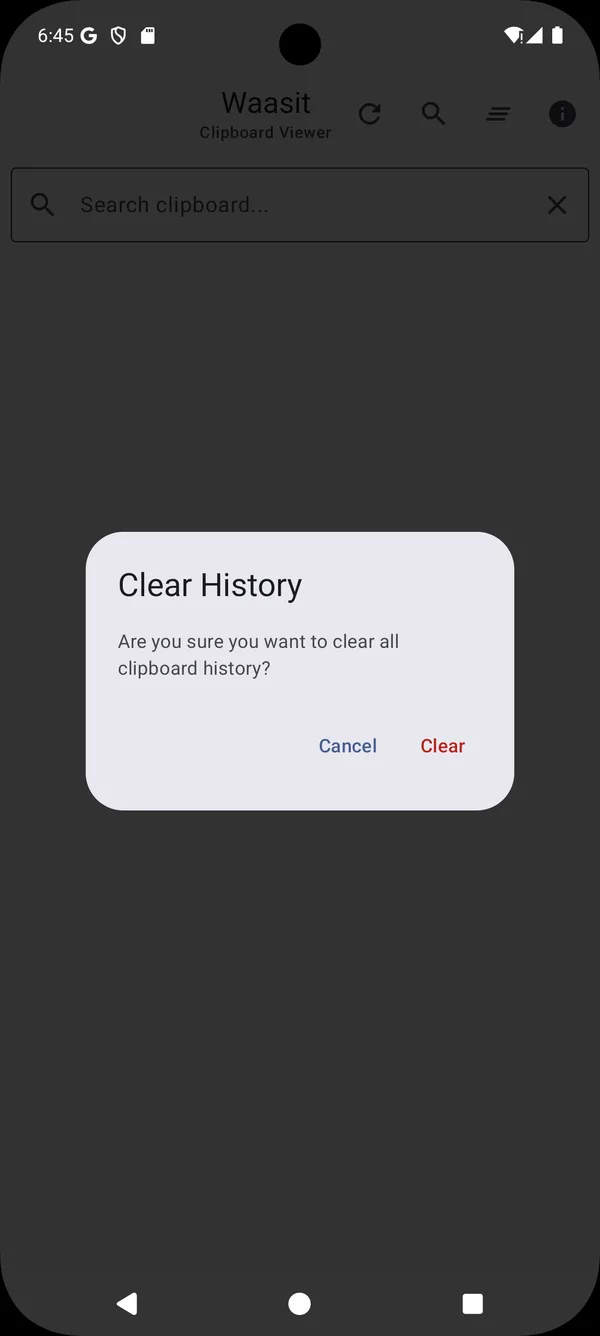
- Everything: tap the clear-all icon. A box asks "Are you sure you want to clear all clipboard history?" with the choices "Cancel" and "Clear". Clearing removes pinned items too.
Take care with what you copy. Whatever you copy while Waasit is open, including anything sensitive, goes into the saved list until you delete it. I make no claim about how safe that list is. For the data handling page, see Waasit data handling.
What Waasit does not do, and what was not checked
- It does not catch copies made while the app is closed or in the background.
- It saves text only, not pictures or files.
- It has no sync between phones and no way to export the list.
- Pinned items do not move to the top and do not survive "Clear".
- There is no record of a long period of real daily use, and no record of tests on different phone brands.
- I read the code from the project folder. I did not confirm that the version on Google Play is identical to it.
- The pictures come from the store listing and show empty screens, not copied text.