 Saifullah Ahad
 TickSpecLive on Google Play
Cron next run time: how to work out when a job will run
The cron next run time comes from five fields and one rule about days. Two named sources set out the fields and the rule, so you can read a schedule by hand. TickSpec, an Android app that previews upcoming run times for a five-field expression, comes after.
- *Minute0 to 59
- *Hour0 to 23
- *Day of month1 to 31
- *Month1 to 12
- *WeekdaySunday is 0
Always in this order, separated by spaces. A star means every allowed value.
Cron expression next run time starts with the five fields
The Open Group publishes the POSIX standard, which includes the crontab utility. The University of Florida’s research computing documentation describes the same five fields for its Slurm scrontab, and says that it “uses the same syntax for date and time specifiers as cron”. Here are the allowed values, as each page gives them.
| Field | POSIX text | University of Florida page |
|---|---|---|
| Minute | [0,59] | 0-59 |
| Hour | [0,23] | 0-23 |
| Day of month | [1,31] | 1-31 |
| Month | [1,12] | 1-12 (or name) |
| Day of week | ([0,6] with 0=Sunday) | 0-7 (0 and 7 are Sunday, or use name) |
The two pages differ on the weekday: the standard lists 0 to 6, the university page also allows 7 for Sunday. If you write a schedule for a particular system, check which one it accepts.
Star
POSIX: an asterisk means “all valid values”. The University of Florida page says it “means that it’s valid for each of the allowed values for the given time period.”
Lists
POSIX: a list is elements “separated by <comma> characters”. The university page says lists have “commas separating the numbers or ranges”.
Ranges
POSIX: two numbers separated by a hyphen-minus, “meaning an inclusive range”. The university page adds: “The second number must be greater than the first.”
Steps and names
Only the university page covers these: a slash and a step value “causing the job to run at the specified interval appropriate for that field”, and names for the month and the day of the week. The POSIX text I read lists neither.
Sources: The Open Group Base Specifications Issue 7, 2018 edition, crontab and UFIT Research Computing, University of Florida, “Reoccurring Jobs”. Both are described in full under “Where this guide comes from” below.
The day rule that catches people out
To find the next run, look for the next minute where the minute, hour and month fields match and the day passes the day rule. That rule has a twist when you fill in both the day of month and the weekday. The POSIX text says it this way:
“Finally, if either the month or day of month is specified as an element or list, and the day of week is also specified as an element or list, then any day matching either the month and day of month, or the day of week, shall be matched.”
The Open Group, crontab, Issue 7, 2018 edition.
The same text says that with stars in month, day of month and day of week, “every day shall be matched”. With the weekday as a star, the month and day of month decide. With the day of month and month as stars and a weekday set, only those weekdays match.
An example I worked out by hand, not from a source
0 9 15 * 1
Minute 0, hour 9, day of month 15, any month, weekday 1 (Monday). By the rule above, 9:00 matches on the 15th and also on every Monday. Starting from Friday, November 13, 2026 at 10:00, the next runs are:
- 1Sun, Nov 15, 09:00the 15th
- 2Mon, Nov 16, 09:00a Monday
- 3Mon, Nov 23, 09:00a Monday
- 4Mon, Nov 30, 09:00a Monday
- 5Mon, Dec 7, 09:00a Monday
- 6Mon, Dec 14, 09:00a Monday
- 7Tue, Dec 15, 09:00the 15th
A reader who expected only a Monday that is also the 15th would wait a long time. I did not run this example in TickSpec.
Which clock is the next run time on?
Neither source says. The POSIX text I read does not mention time zones, and neither does the university page. So before you trust any cron next run time, find out which time zone the machine that runs the job uses, and compare it with the zone of the clock you are reading. That advice is mine, not the sources’.
TickSpec always uses the phone’s own time zone and shows it on screen as Local zone, followed by the zone name. It has no zone chooser.
Cron expression next run time on a phone: what TickSpec shows
TickSpec: Cron Preview is an Android app for checking a five-field cron expression before you paste it somewhere else. You type or paste an expression, and the app lists up to twelve upcoming run times, starting from the next minute. That list is the cron next execution time, shown for the phone’s clock. The app does not run or schedule any job.
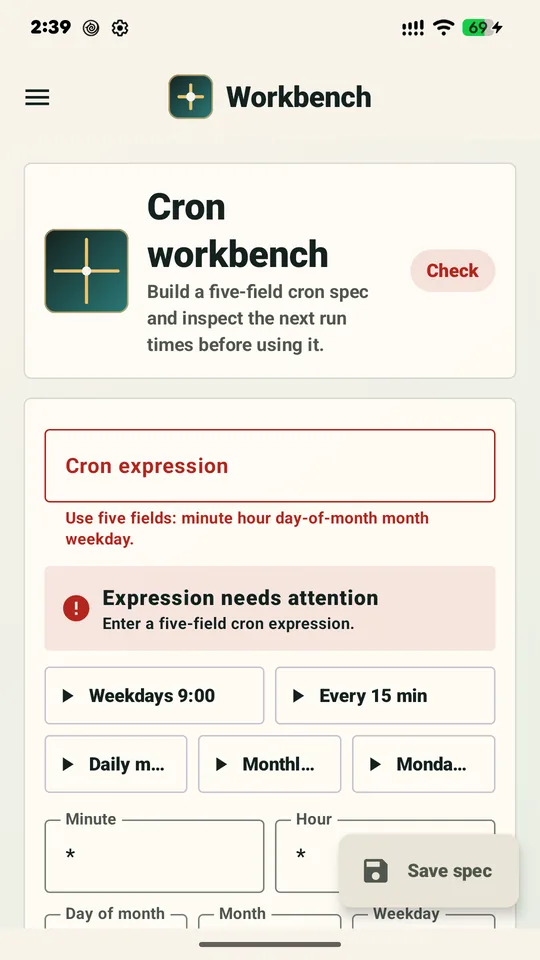
Workbench
The Cron expression box takes the whole expression, and separate boxes for Minute, Hour, Day of month, Month and Weekday sit below it. Five preset buttons fill it in: Weekdays 9:00, Every 15 min, Daily midnight, Monthly report and Monday digest.
The Workbench with nothing typed yet. The badge reads Check, and the app says: “Enter a five-field cron expression.”
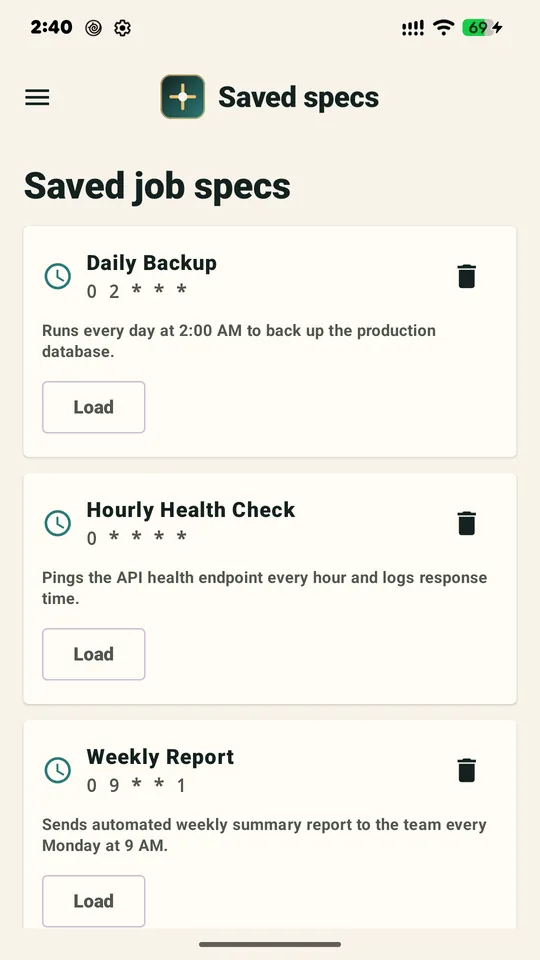
Saved specs
Give an expression a Job name and Notes, then Save spec. Each saved spec has a Load button to bring it back and a delete button. With none, the app says “No saved specs yet”.
Three example specs in the store picture: Daily Backup, Hourly Health Check and Weekly Report, with their expressions and notes. They are sample entries.
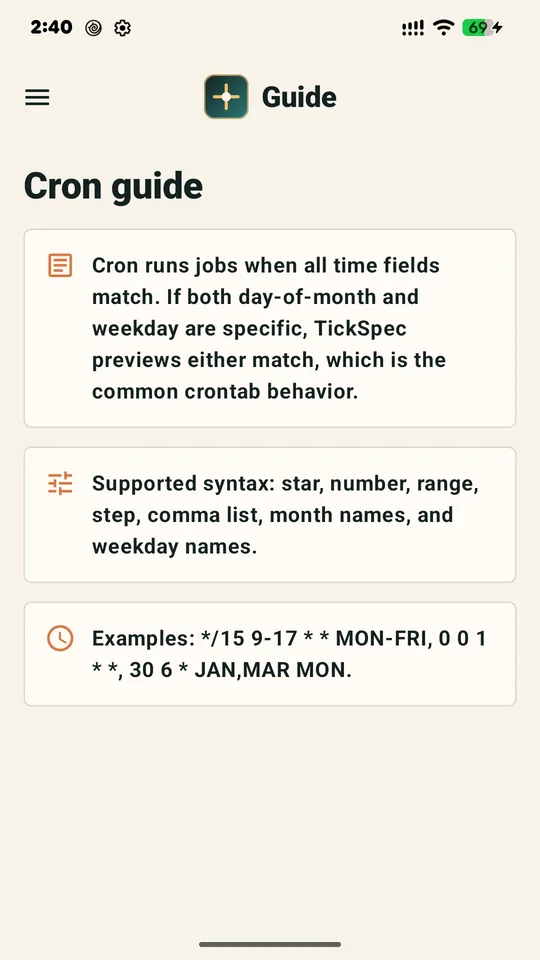
Cron guide
The in-app guide says cron runs a job “when all time fields match”, and that if both day of month and weekday are specific, TickSpec “previews either match, which is the common crontab behavior.” It lists the syntax it supports and three examples.
The Cron guide screen with its three cards: how matching works, supported syntax, and examples.
- The preview
A valid expression gets a Next run preview: numbered rows such as “Sun, Nov 15 09:00”, in 24-hour time, under the line Local zone. A Cadence map and a Field map show the schedule another way. None of the store pictures shows a valid expression with its rows, so this part is described from the app’s text and code, not from a picture.
- What it accepts
Star, number, range, step, comma list, month names and weekday names. Minute 0 to 59, hour 0 to 23, day 1 to 31, month 1 to 12 or JAN to DEC, weekday 0 to 7 or SUN to SAT, with 7 read as Sunday. A reversed range is refused: “This range is reversed or outside the allowed range.” Steps must be positive whole numbers.
- The day rule
The same either-one-matches rule as the POSIX text, for an expression where both day fields are filled in. A test in the project covers it.
- A short summary
Under the preview, a one-line summary for a few common shapes, such as “Weekdays at 09:00.” Any other expression gets a count line, “Custom schedule with…” followed by how many minutes, hours, days, months and weekdays match. It does not translate every expression into a sentence.
- What it refuses
Anything that is not exactly five fields: “Use exactly five fields separated by spaces.” That means no six-field or Quartz style expressions, and no shortcuts such as
@hourly. If nothing matches within the search window, it says “No matching run time was found in the preview window.”- What it keeps
Saved job names, expressions and notes stay in the app on the phone. The privacy policy says the app has no account system or analytics, does not request the internet permission, and that saved expressions stay in local storage until you clear the app’s data or uninstall. You can delete a spec in the app. The app’s manifest also allows Android backup and its backup rules include the preferences file where saved specs are kept; the policy does not mention backup, and I did not check what Android does with it.
Where it stops
- Five fields only, and only the phone’s time zone.
- It previews. It does not run, schedule or send anything, and it does not read a crontab file.
- Which weekday numbers or step forms your own system accepts is for you to check there. The two sources above already differ on the weekday.
What I did not check
I read the store listing, the project records, the code, its test file, the privacy policy, and I opened the store pictures. I did not run the app myself. I did not run the project’s tests; its notes list the tests, lint and a release build as passed, and I did not re-run them. I did not compare TickSpec’s list with the output of a real cron program, and I did not test how it behaves when the clocks change for daylight saving.
Get it
An Android app on Google Play. It previews upcoming run times for one cron expression at a time.
View TickSpec on Google PlayWhere this guide comes from
The Open Group
“crontab - schedule periodic background work”, The Open Group Base Specifications Issue 7, 2018 edition (IEEE Std 1003.1-2017). A standards document. I read its input files section, where the crontab format is defined. The page says a newer edition exists; I did not read it.
University of Florida, UFIT Research Computing
“Reoccurring Jobs”, UFIT-RC Documentation, the section on Slurm scrontab. A help page for people who run jobs on the university’s computing cluster. It is about scrontab, not the system crontab, and it shows no date.
Got a cron schedule you are not sure about?
Work it out by hand with the five fields and the day rule, then compare it with a preview before it goes into a script.