 Saifullah Ahad
 Rahat HomeLive on Google Play
SAIFULLAH AHAD / BUILD STORY
A simple Android launcher for elderly parents, and what to set up first
When you look for a simple android launcher for elderly family members, it helps to adjust a few built-in Android settings before you change the home screen itself.
What to Set First on Any Android Phone
Before installing a new home screen app, sit down with the phone for ten minutes and walk through the built-in display, sound, and camera tools. In its guide Making devices easier to use for older people, the charity Age UK notes: "Getting to grips with smartphones, tablets and computers can feel overwhelming, especially if you have problems with your vision, hearing or mobility." Age UK adds: "There's a range of features you can adjust to make sure your device meets your needs."
Start in the phone Settings app so the system menus and incoming calls are comfortable to read and hear. The Australian government initiative Be Connected, run by the eSafety Commissioner, explains in Android phone: Accessibility settings: "Before you start, make sure your Android phone is showing the Home screen and that your operating software is up to date."
- Enlarge text and icons first. Age UK states: "You can make your phone or tablet easier to see and read by changing its display settings, such as increasing the font size and the size of items like icons and images on the screen." In Android Settings, open the accessibility menu to adjust both the font size slider and the display size scroller.
- Turn on visual call alerts and check call audio. Age UK points out: "Using the speakerphone may also help you hear what the person on the call is saying." For visual alerts, Be Connected notes: "Depending on your model of Android phone, you can use the camera flash to stay on top of calls and messages."
- Show how to use the camera as a reader and voice dictation for typing. Be Connected explains: "Using the Camera app and pinch-to-zoom is handy for reading fine print on bills, or for getting a closer look at small objects." For messages, Be Connected also notes: "Instead of typing, you speak into your phone and it converts your speech into text."
Even after you adjust those system settings, the standard Android home screen can still feel crowded with tiny folders and shifting rows. That is where a dedicated launcher for elderly android users fits into the setup.
How Rahat Home Replaces the Cluttered Home Screen
I built Rahat Home: Easy Phone as an Android home screen app, also called a launcher. Once set as the phone's home screen, it replaces the normal home screen with big tiles so a parent or relative has an easy android phone for seniors focused on daily tasks.
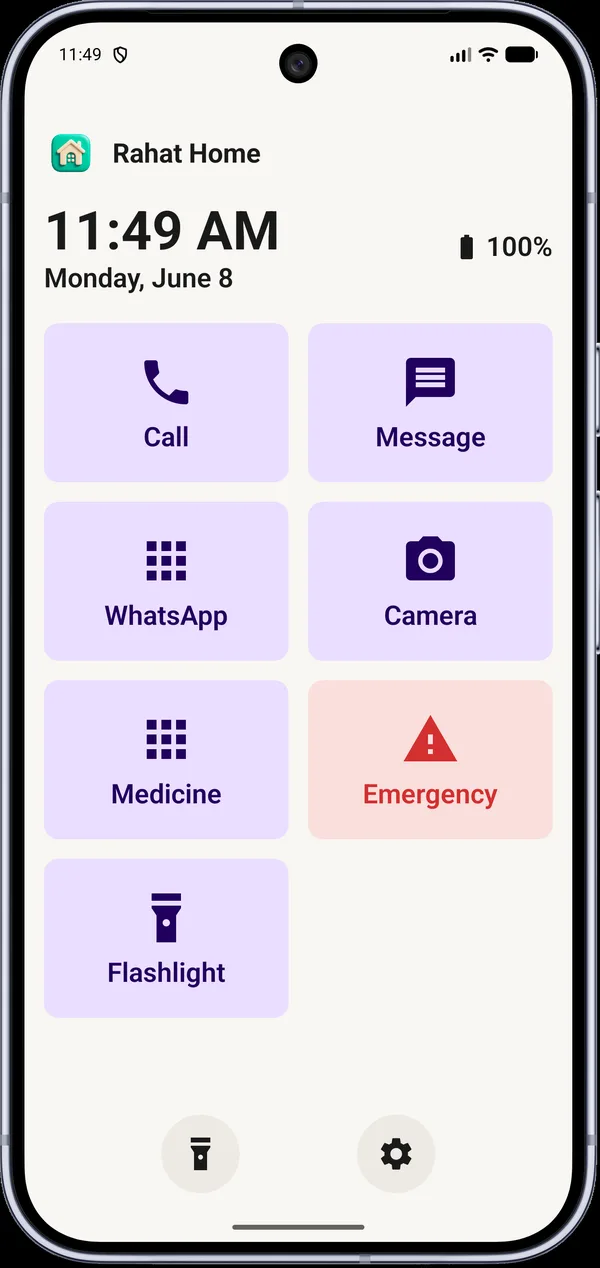
At the top of the home screen, Rahat Home shows the time, the date, and the battery level, followed by favorite contacts. Tapping a favorite contact opens the phone's dialer with that number filled in. Below the contacts sit the main big tiles: Call, Message, WhatsApp, Camera, Medicine, Emergency, and Flashlight, plus apps the family picks.
- Call and Message: Call opens the phone's dialer, and Message opens the messaging app.
- WhatsApp and Camera: WhatsApp opens WhatsApp if it is installed, and Camera opens the camera.
- Flashlight and Medicine: Flashlight turns the phone's light on and off. Medicine opens my medicine app Dawaa if it is installed, otherwise its Play page.
- Low battery notice: When the battery is low, the home screen shows "Battery is low. Please charge your phone." and tapping it opens the battery settings.
Walking Through First Time Setup Together
Setting up a phone for a parent works well when you go through each decision together at the kitchen table. Rahat Home runs through a clear step-by-step flow on first launch:
- Greeting and language: The setup starts at "Welcome to Rahat Home" and moves to "Choose Language", where you can pick English or Bangla.
- Setup role: The screen asks "Who is setting up?" with two choices: "For me" or "For someone I care for".
- Quick calling list: On "Add Favorite Contacts", the prompt states "Add up to 6 contacts for quick calling", which are picked from the phone's contacts after the contacts permission is granted.
- Extra apps: On "Choose Apps", the prompt says "Pick 4 to 8 apps for your home screen" so the family can include familiar tools alongside the built-in tiles.
- Medical card details: The "Emergency Information" step collects Name, Emergency Number, Blood Group, Allergies, Medical Conditions, and Medicines.
- Protecting the layout: On "Caregiver PIN", you see "Set a PIN to protect settings from accidental changes" using 4 to 6 digits, followed by the final step, "Set as Home Screen".
Settings, Visual Modes, and Wide Screens
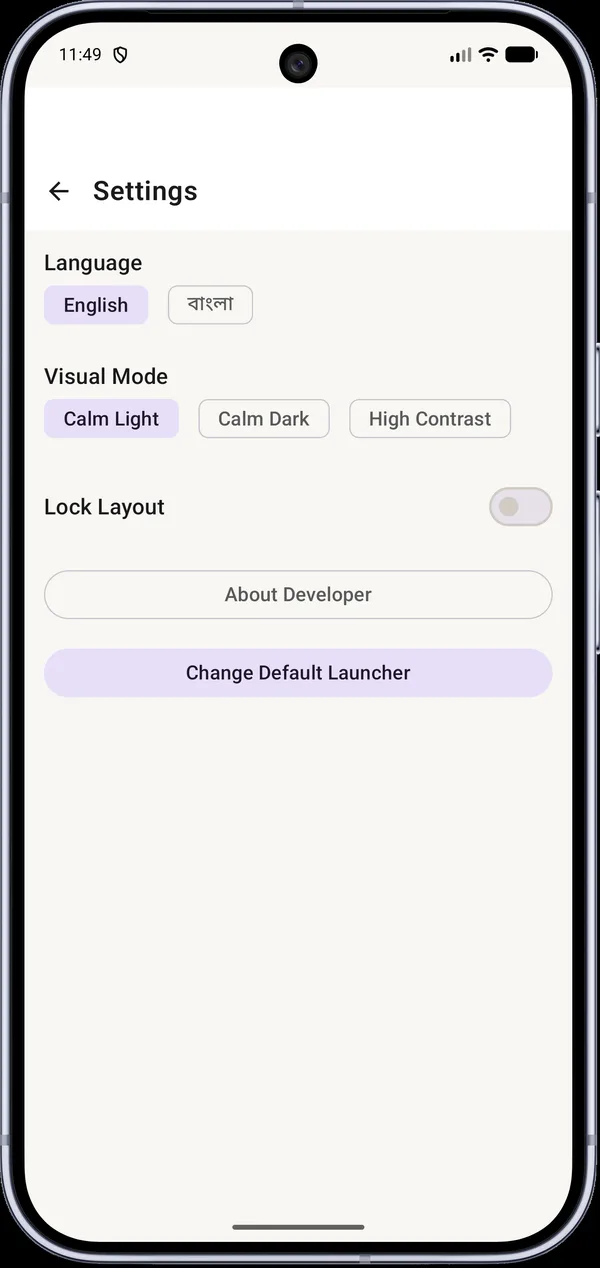
Once the phone is in daily use, accidental taps should not undo the layout. When a Caregiver PIN is set, opening Settings asks "Enter Caregiver PIN" first. Inside Settings, you can change Language, switch the Visual Mode between "Calm Light", "Calm Dark", and "High Contrast", toggle "Lock Layout", read "About Developer", or tap "Change Default Launcher" to leave Rahat Home.
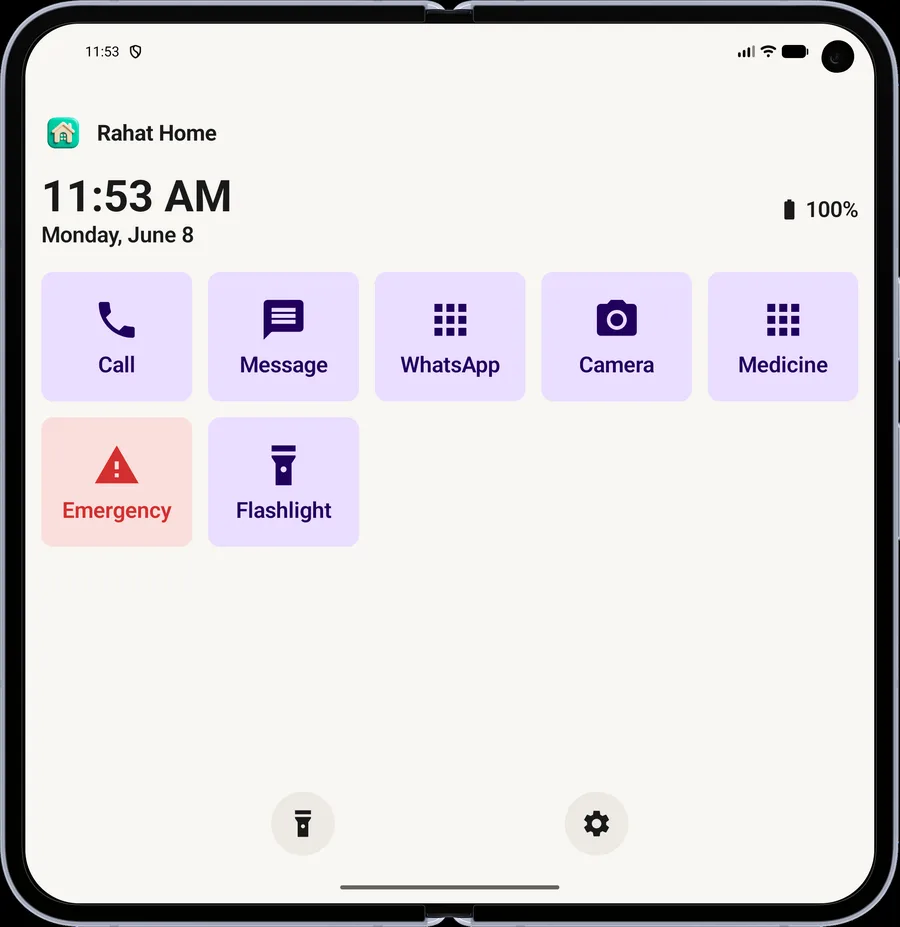
On a wider, unfolded phone screen, the home screen arranges the tiles in one row.
How the Emergency Tile Works and Honest Limits
Tapping the red Emergency tile opens the "Emergency" screen. At the top is a big "Call Emergency" button that opens the phone's dialer with the saved emergency number filled in. The person still presses call. If no number was saved, it fills 999, so the number must be set in setup. Below the button, the screen reads "Use local emergency services when there is danger." It also includes a "Share Details" button that shares a short text with the name, blood group, allergies and medical conditions, along with a "Medical Card" showing the saved details.
As stated on the store listing, contacts, layout, settings and the emergency profile are stored on the phone. You can also read the Rahat Home data handling page. The store listing states clearly: "Rahat Home does not replace medical, emergency, or professional care."
What Rahat Home Does Not Do and What Was Not Checked
- It does not call emergency services by itself; the person still presses call in the phone's dialer.
- It does not detect falls or track location.
- It does not send alerts to family.
- It is not a medical device.
- It was checked on phones, not tested with older users in a study.