 Saifullah Ahad
 LitWeaveLive on Google Play
How to organize research papers: sort them, name them, take notes
How to organize research papers comes down to three habits that two university library guides describe: sort what you find into bins, name your files so you do not have to open them, and take notes as you read. You can do all three with folders and a text file. LitWeave, an Android app that finds papers through Crossref and Unpaywall and keeps your notes, comes after the guide.
Sort every paper into one of four bins
The University of Michigan Library’s literature review guide says: “After determining the eligibility criteria that makes sense for your review, consider sorting your sources into the groups shown below.” Eligibility criteria, it says, are what you use to decide whether a source fits your review, for example “quantitative vs. qualitative studies, population, methodology, geographic location, etc.” Its four groups, in its words:
To Read
“Sources that you have located but haven’t read yet”
Include
“Sources that you’ve read and meet your eligibility criteria”
Exclude
“Sources that you’ve read and don’t meet your eligibility criteria”
Keep for Later
“Sources that you’ve read and it is unclear if they meet your eligibility criteria”
The guide adds: “It’s important to keep ALL of the sources you’ve read so you can refer back to them later. Otherwise, you may accidentally locate, read and analyze the same source multiple times.”
Read each article out of order
Michigan: “The least efficient way to read a scholarly article is from Introduction to Conclusion. Instead, read out of order, skipping around to various sections.” The reason it gives: you may spend your time on a dense section such as the Results, and only then find from an easier section such as the Conclusion that the article does not meet your criteria. Its suggested order, numbered as it numbers it:
- Title, Authors & Citation
- Abstract
- Introduction
- Conclusion
- Section headings and sub-headings
- Skim figures and captions
- Methods
- Results and Discussion
The stop rule
“After reading each section, STOP. If the article isn’t relevant to you any longer, stop reading. Move it to your Exclude folder and make notes on why you excluded it.”
For a large pile, it also says: “consider prioritizing journals and authors.” It asks whether there are journals in your field that are considered important, or authors you recognize, and says to read those articles first.
An example, not from either source and not from LitWeave
You open a paper and read its abstract and its conclusion. The conclusion is about a group of people your question does not cover. Following the guide, you stop there, move the paper to Exclude, and write one line saying why. A month later, when the same paper turns up in another search, that line tells you that you already looked at it.
Source for this part and the next: University of Michigan Library, “Organizing the Literature”, Literature Reviews research guide, page footer dated Sep 17, 2026. Read in full.
How do I organize research papers as PDF files?
Give every file a name that tells you what it is. Michigan: “A file naming convention (FNC) is a standardized way of naming your digital files. All your files should have unique names so that you don’t have to open the file to know its contents.” Its ideas for a convention:
- “Choose between 4-7 elements for the FNC, such as date, document type, document purpose, etc.”
- “Use a standardized nomenclature for dates, such as YYYY-MM-DD”
- “Only use letters, numbers, hyphens and underscores. Avoid special characters, such as !@#$%^&”
- “Avoid using ambiguous words (like final, initial, revised, etc.).”
- “Write down your FNC! You’ll thank yourself later”
Michigan’s ambiguous name
lit_review_revised_final.docx
“doesn’t list a date or purpose and has the ambiguous ‘revised’ term”
Michigan’s descriptive name
2024-04-01-LitReview_DissertationComments.docx
Michigan says it is much more descriptive because it lists the date and the purpose of the document, and the initials of the person who last commented.
Both example names are Michigan’s, and they are names for a review document, not for a paper. The guide does not give a pattern for naming article PDFs, so choosing which four to seven elements to use for papers is left to you.
Take notes as you read
The Penfield Library guide at SUNY Oswego puts it in three words: “Take notes as you read!” It goes on:
“Make note of common themes you encounter in your readings. You might even want to create an annotated bibliography. You won’t turn this in, but it will serve as a useful summary for you when you go to write the actual review.”
Its guide is about writing a literature review, so that is the job it has in mind. It warns about one thing when you exclude papers: “make sure that you don’t exclude an article just because its findings don’t match with other articles. Remember that part of a literature review is to point out inconsistencies!”
Oswego’s note-taking table
“A useful tool for writing literature reviews is to create a synthesis matrix. Each row represents a common theme or point; each column represents an article you read.”
It says to “Include some quotations, but for the most part, paraphrase or summarize” and to “Include page numbers for direct quotations in case you need to refer back to them”.
Source: SUNY Oswego, Penfield Library, “Read, summarize & synthesize”, Conduct a literature review guide, page footer dated Jul 22, 2026. Read in full. Its sample table is about another subject and is not used here.
What LitWeave does for this, and what it sends
LitWeave is an Android app. In its Discover tab you type “Topic, phrase, author, or DOI” and it searches Crossref, which the app says “supplies publisher-deposited bibliographic records, references, and citation counts.” Each result opens as a paper dossier, you can save a paper to your Evidence tab, and you can write a note and tags on it. It does not summarize papers, judge their quality or get past a publisher’s access controls, and it does not keep PDF files or make folders.
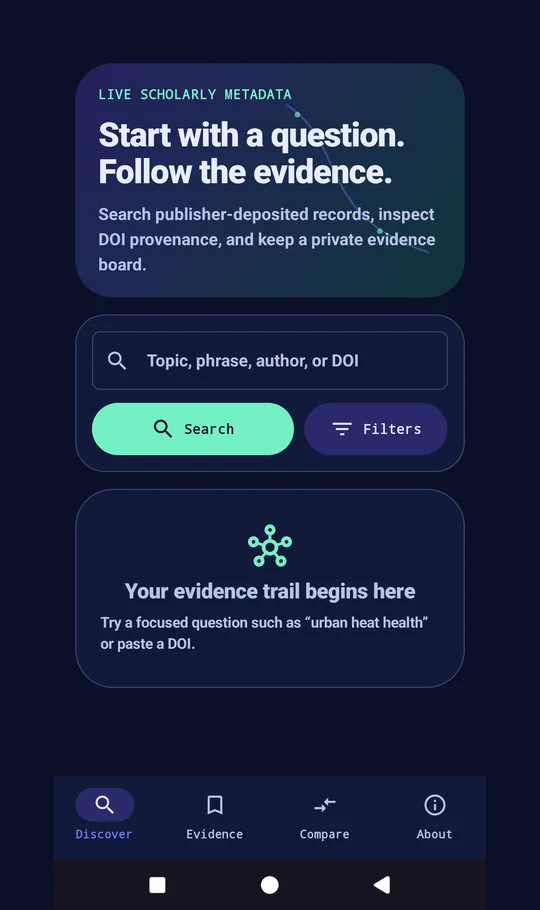
Discover
The search screen: the box says “Topic, phrase, author, or DOI”, with Search and Filters under it. The empty panel says to try a focused question or paste a DOI.
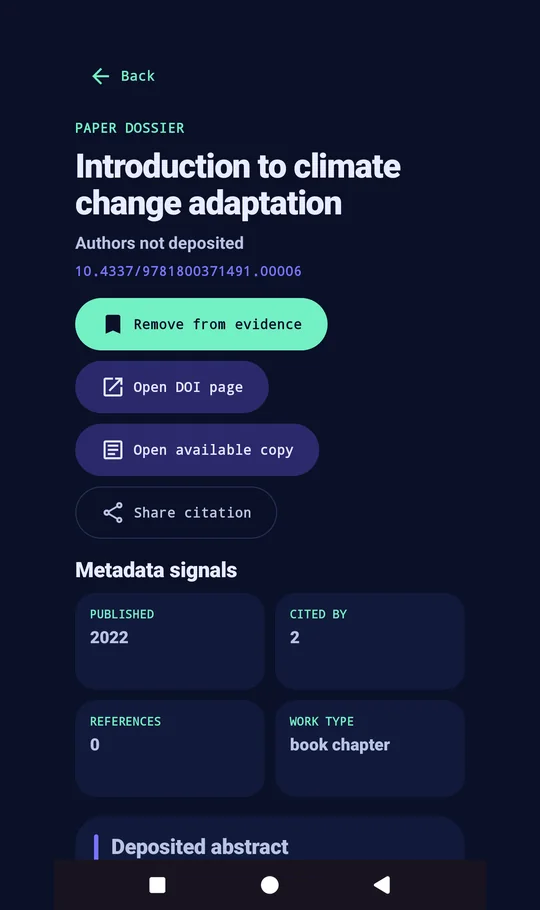
Paper dossier
A saved paper’s dossier: the DOI, Remove from evidence, Open DOI page, Open available copy, Share citation, and Metadata signals. This record has no authors deposited, so it says so.
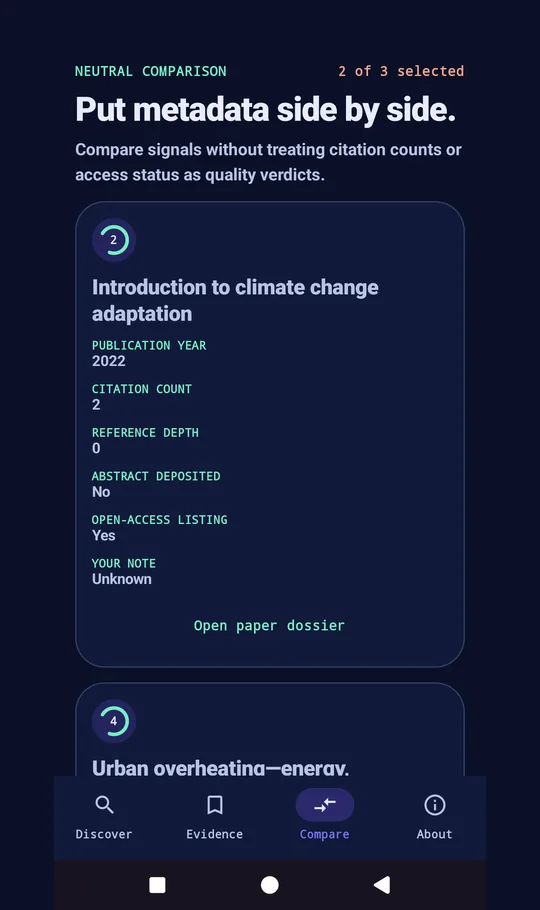
Compare
The Compare tab with two of three papers selected. One card lists Publication year, Citation count, Reference depth, Abstract deposited, Open-access listing and Your note.
How it maps to the guide
- Notes. A saved paper has an Evidence note (the hint reads “Why does this paper matter to your question?”) and Tags (the hint reads “method, context, limitation”), saved with Save note and tags. A note is cut off at 2,000 characters and the app keeps at most six tags, separated by commas.
- Bins. The app has no built-in To Read, Include, Exclude or Keep for Later groups. Tags are words you type, so you could type those names as tags yourself. That is my suggestion, not a feature of the app.
- Keeping everything you read. The Evidence tab lists what you saved, newest first, with a NOTE marker on papers that have a note and a Delete saved paper button.
- Side by side. Compare takes two or three saved papers. The app says it compares signals “without treating citation counts or access status as quality verdicts.”
- File names. The app does not name or store files. Share citation sends text through Android’s share sheet in the form author, year, title and the DOI address.
- Free copies. Access check asks Unpaywall and says “An open-access location is listed.”, “No open-access location is currently listed.” or “Open-access status could not be confirmed.” Open available copy opens the listed address in your browser. It is not a way around a paywall.
What leaves your phone, from the app’s code
I read the app’s code for this. All requests use HTTPS. The app has no server of its own.
Crossref receives
- The words you search for, with your From year, Until year, Work type and Sort choices if you set them, and which page of 20 records you are loading.
- A DOI, when you paste one into search, open a paper dossier, or use Trace DOI references. Tracing sends up to eight DOIs that the record lists.
Unpaywall receives
- A DOI, when a paper dossier opens, for the access check.
- Not your search words. The code only sends DOIs to Unpaywall.
About an email address
Each request carries the developer’s own public contact address, [email protected]: in the address sent to Unpaywall, and in a User-Agent line sent to both services. It is not your address, and the app never asks you for one.
As the privacy policy says: “Like other internet requests, Crossref and Unpaywall can receive standard network information such as your IP address.” It also says the developer “does not operate these services, receive the requests, or keep a developer-side search history.” Each service handles its requests under its own privacy policy. Your notes, tags and compare choices are never part of a request.
What it keeps, and where
Papers you save, your notes and tags, your compare choices and recent search results (kept for up to seven days) stay in the app’s private storage on the phone. The privacy policy says Android cloud backup and device-transfer export are disabled for this data. You can delete a saved paper inside the app, clear the app’s data in Android settings, or uninstall it. The app asks for two permissions, internet and network state.
Where it stops
- It shows what publishers deposited, which can be missing or out of date. Some records have no authors, no abstract or no references, and the app says so.
- A citation count or an open-access listing is not a quality score, and the app says that too.
- It does not read, store or rename PDF files, and it has no folders.
- It does not tell you which papers to include.
What I did not check
For this page I read the store listing, the project’s records, the app’s strings, the code that talks to Crossref and Unpaywall, the code behind notes and tags, the manifest, the backup settings and the live privacy policy, and I opened the store pictures. I did not run the app myself. The project has unit tests for how a paper is stored, how a DOI is cleaned up and how a web address is validated, and I did not run them. The project’s own quality report, dated 2026-08-15, says a fresh check on a phone was still required before release, and I found no later record of one. I did not look at how Crossref or Unpaywall treat the requests they receive beyond what the privacy policy says.
Get it
An Android app on Google Play, for finding papers and keeping your own notes on them.
View LitWeave on Google PlayUniversity of Michigan Library
“Organizing the Literature”, a page of the Literature Reviews research guide, with sections on screening sources, reading articles and file naming. The page shows Sep 17, 2026 as last updated. Read in full.
SUNY Oswego, Penfield Library
“Read, summarize & synthesize”, a page of the Conduct a literature review guide. The page shows Jul 22, 2026 as last updated. Read in full. Its sample table is not used.
Starting a pile of papers?
Start with the four bins and one line of notes per paper. A folder and a text file are enough to try it before you use any app.