 Saifullah Ahad
 EngegarLive on Google Play
Engegar: make bootable USB from Android phone
You can make a bootable USB from an Android phone if you bring three things, and you must accept that the stick is wiped. The two named sources below cover making install sticks on a computer; neither covers a phone. Engegar is an Android app that does the phone part, and this page says what was checked and what was not.
- A USB stickOne you can erase. Everything on it goes.
- An OTG adapterSo the stick plugs into the phone. The app says: “Plug in a USB flash drive using a USB OTG adapter.”
- A downloaded fileA Windows or Linux image (ISO or IMG), already on the phone. The app does not download it for you.
It erases the stick.
Engegar asks once. Its sheet says: “Everything currently on this USB drive will be permanently erased. This cannot be undone.”
The sheet names the drive and the image, you tick one box, and then the button Erase & Build Bootable USB turns on. Until the box is ticked, the button stays off. That is the only confirmation. Copy anything you need off the stick first; the privacy policy says to keep a separate backup of any USB files you need before confirming erasure.
What two named sources say about making the stick
Both pages are written for a computer, not a phone. I quote them as they say it, and where they do not reach a phone I say so.
Debian Project: Linux image to a stick
The Debian Installation Guide, section 4.3, “Preparing Files for USB Memory Stick Booting”. Debian is a volunteer community project.
“To write to your stick, you may have to turn off its write protection switch.”
“The procedures described in this section will destroy anything already on the device! Make very sure that you use the correct device name for your USB stick.”
“Debian installation images for this architecture are created using the isohybrid technology; that means they can be written directly to a USB stick, which is a very easy way to make an installation media.”
“Simply choose an image (such as the netinst or DVD-1) that will fit on your USB stick.”
“The image must be written to the whole-disk device and not a partition”
“Do not use tools like unetbootin which alter the image.”
Its commands are for a computer that already runs GNU/Linux. It says nothing about phones.
Louisiana State University: Windows install stick
LSU Information Technology Services, GROK Knowledge Base, “Windows 10: Create a Bootable USB”, last updated 2/5/2025. The page itself says it “has not been updated recently and may contain dated material.”
“NOTE: This method is only intended for Windows Pro or Windows Home editions.”
Step 5: select “Create installation media for another PC”.
Step 6: “Select the language and edition desired from the pull down menu and then select the appropriate architecture (32 or 64 bit) for your operating system.”
Step 7: click “USB flash drive”.
Step 10: “Windows 10 will now start downloading on your flash drive.”
It uses Microsoft’s own tool on a computer and is about Windows 10. It does not say how to do this from a phone or for Windows 11.
Why this matters for a phone: the person who needs a phone for this often has no working computer to run those tools on. Both sources agree on the parts that do not change: a stick you can lose everything on, a whole-stick write, and an image that fits.
Make a bootable USB from an Android phone, step by step in Engegar
Pick the file
On the first card, 1. Operating System Image, tap Pick ISO or IMG File and choose the download through Android’s file picker. The app looks at the file before it touches the stick. It refuses a cut-off download with: “Incomplete download: file is %1$s, but volume declares %2$s. Download %3$s more before writing.” A file that is not an image is refused with “This file is not a recognized disc image or disk image.” A Windows image that uses solid install.esd is refused too.
Plug in the stick
On 2. Target USB Flash Drive, connect the stick through the adapter and let Android grant access. The app turns away a printer, audio device, keyboard, mouse, or another phone, and a write-protected stick: “This USB drive is write-protected. Unlock the physical switch to continue.” It also tells you when the stick is too small for the image.
Tap Make Bootable USB
On 3. Make Bootable USB, tap the button. The erase sheet from above appears. Tick the box and tap Erase & Build Bootable USB, or tap Cancel.
Wait through four stages
The progress sheet, Building Bootable USB, runs Fake Stick & Capacity Check, Partitioning & Formatting, Writing Installer Data and Full Read-Back Verification. A stick that claims more than it holds is stopped: “This stick claims %1$s, but only %2$s is real. Use another stick.” At the end you see “Written and read back: %1$s, no differences.” or “Read-back verification failed at offset %1$s. Drive was left safely unbootable.”
Start the computer from the stick
The button How to Boot Your PC opens PC Boot Menu Keys, a table the app keeps by brand: Dell F12, HP F9 or Esc, Lenovo F12 or Novo, Asus F8 or Esc, Acer F12, MSI F11, Samsung F10 or Esc, Surface hold Volume Down. It is the app’s own table, not one of the two sources, and I did not check it against any computer. Your computer maker’s one-time boot-menu instructions come first.
Can you create a Windows 11 bootable USB from an Android phone?
The app is built for it. Windows installers store the main file, install.wim, in a size that will not fit the FAT32 layout a computer boots from, so the app writes it in parts that fit. The store text says Windows images containing install.wim are written to a FAT32 drive for UEFI, and that Windows legacy BIOS mode is unavailable. Linux images that can be written directly, and raw disk images, are copied straight across.
What was checked: on a computer, with a simulated stick and not a real one, the project wrote an official Windows 11 25H2 x64 English image, split the install file and read everything back. What was not checked: a real stick written from a phone, and a real computer starting from it. The app itself says: “No physical USB drive or computer boot mode has been confirmed for this release yet.”
What Engegar shows on the phone
Engegar: Bootable USB Maker is an Android app. It writes a Windows or Linux image to a stick, then reads the stick back and compares it. Its own words: “A completed read-back confirms the copied data, not whether your computer will boot.”
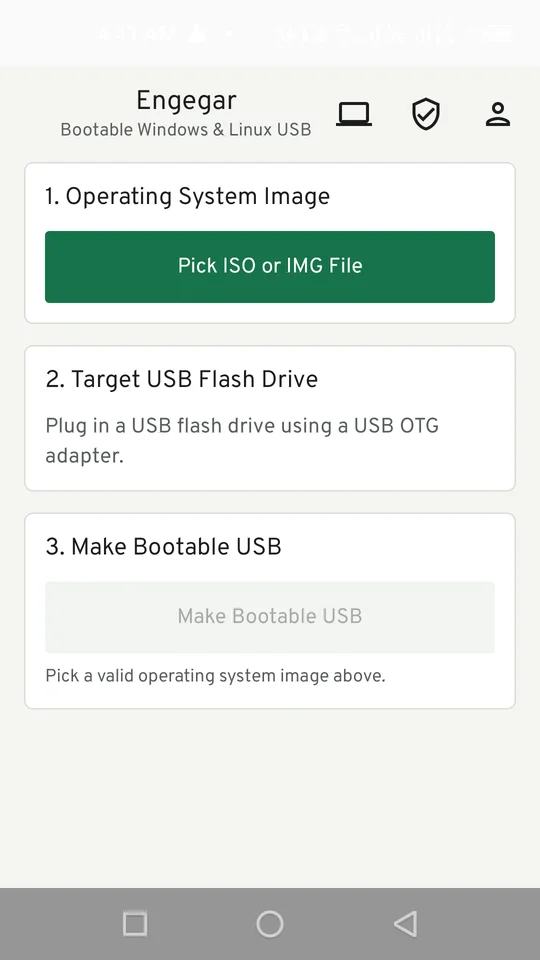
The three steps
The home screen before anything is picked. The last button is greyed out and says: “Pick a valid operating system image above.”
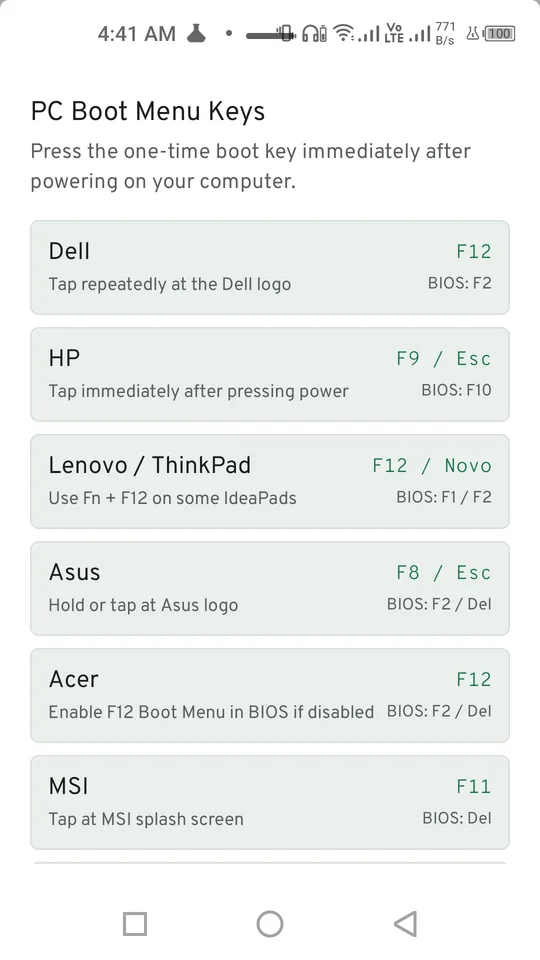
PC Boot Menu Keys
The table of one-time boot keys by brand, with the line “Press the one-time boot key immediately after powering on your computer.”
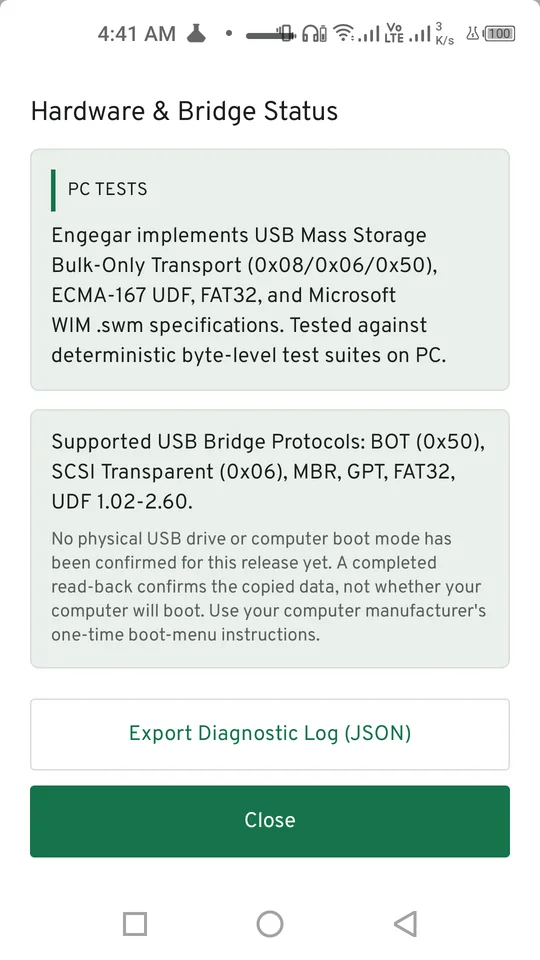
Hardware & Bridge Status
The app’s own limits: tested on a PC against byte-level test suites, and no physical drive or computer boot confirmed yet.
What was checked, and what was not
CheckedIn the project’s records
- On a computer, with simulated or file-backed sticks: an official Windows 11 25H2 x64 English image, Debian 13.7.0 amd64 netinst and Alpine Linux 3.24.2 x86_64 standard were written and read back. The two Linux images matched their published checksums.
- Fake sticks were refused before any image data was written: three simulated models that claim more than they hold. Cut-off Debian copies, a text file renamed to .iso, an empty file and a Windows image with install.esd were refused.
- The signed release was installed on an Infinix Note 8 and a Galaxy Tab S3. The screens opened, and on the phone a non-image file was refused. No crash or freeze was recorded.
Not checkedNo record shows it
- Writing to a real USB stick from a phone. The Tab S3 run “did not have a mass-storage interface, so it does not prove USB writing or the foreground transfer.”
- Any real OTG adapter or any real stick brand.
- A real computer starting from a stick Engegar made, Windows or Linux.
- Windows 10, 32-bit images, other Linux images, and Windows legacy BIOS mode (the store text says it is unavailable).
For this page I read the store listing, the project records and test notes, the app’s text and manifest, the privacy policy, and I opened the store pictures. I did not run the app or any test. The image checks do not establish that an image is genuine, licensed or free of malware; the store text says to obtain images from their publishers.
What it keeps, and where
Per the privacy policy, the app has no account, no network permission, analytics, advertising SDK or automatic diagnostic upload. It reads the image name, size and contents, and the stick’s vendor, model, serial number, capacity and sector size. A local session journal in the app’s private storage lets it recognize an interrupted write; clearing the app’s storage or uninstalling removes it.
The two export buttons copy diagnostic text to the clipboard; nothing is uploaded automatically. The app asks for USB access, a foreground service for the write, notifications and a wake lock, and no storage, location, camera or internet access.
Get it
An Android app on Google Play. It needs Android 8 or later and a phone with USB host support.
View Engegar on Google PlayDebian Project
“Debian GNU/Linux Installation Guide”, section 4.3, “Preparing Files for USB Memory Stick Booting”. The page shows no date. Read in full.
Louisiana State University
“Windows 10: Create a Bootable USB”, GROK Knowledge Base, article 17870, last updated 2/5/2025. Read in full.
Need a stick and have no second computer?
Check the three things first, copy off the stick, and keep the limits above in mind.